
News
How to Set Up Samsung Wallet on a Galaxy Watch and Pay Safely
Samsung’s official guidance explains how to add a compatible card to a Galaxy Watch, make a contactless payment and reduce common security risks.
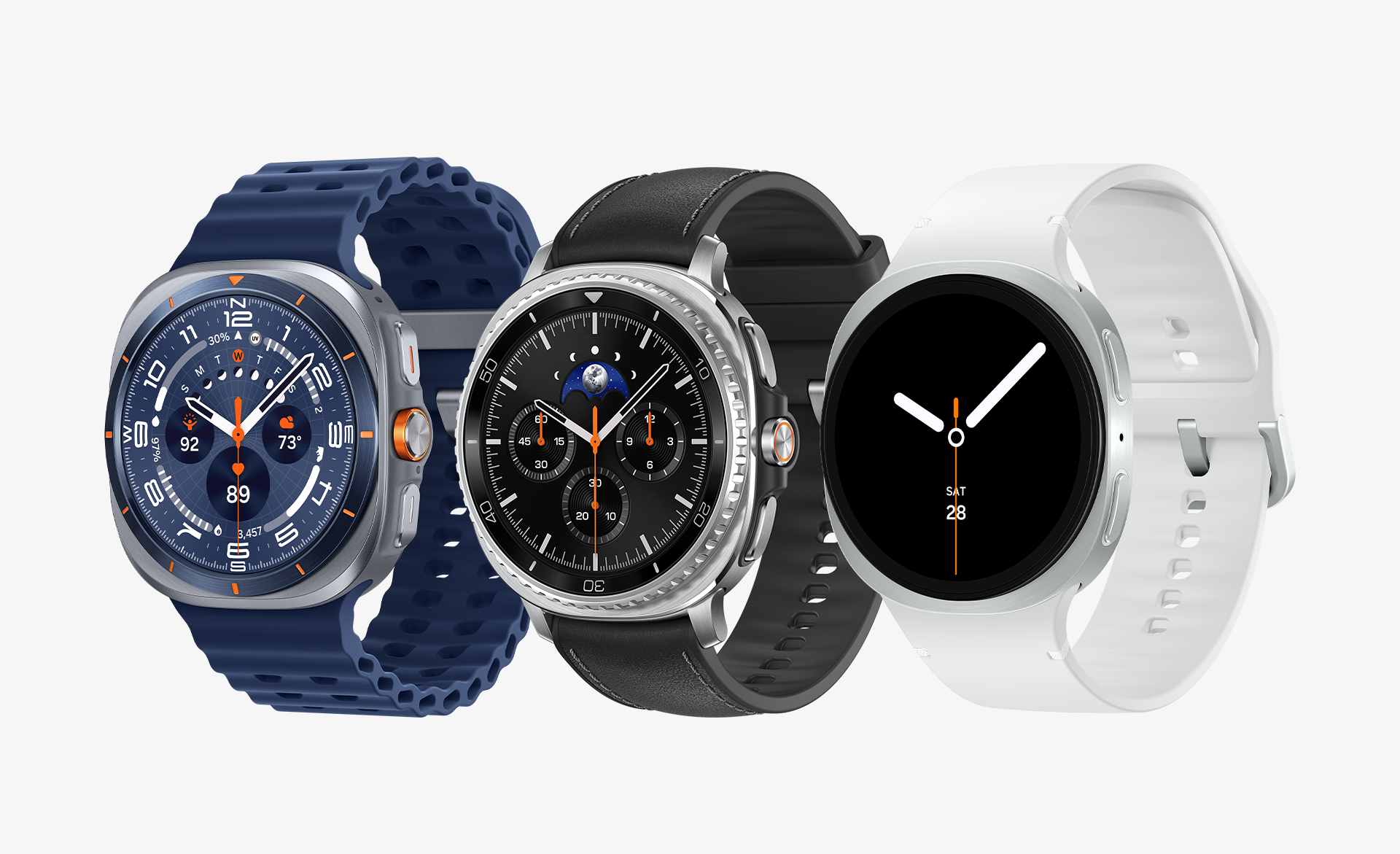
A Galaxy Watch can handle a contactless payment without requiring you to take out your phone. Samsung’s official instructions show that setup begins on the watch but continues on a connected Galaxy smartphone, where you add and activate a compatible payment card. The feature is useful for short trips, public transport or a quick purchase, but availability depends on the watch model, phone software, bank and market.
Samsung Wallet is not a universal replacement for every physical card. Samsung says the service requires a compatible NFC card from a participating bank, a Samsung account and a compatible smartphone running Android 9.0 or later. Its current Wallet information also says watch support is available on Galaxy Watch6 devices or higher for select features. Check those conditions before relying on the watch as your only payment method.
What you need before starting
A compatible Galaxy Watch with its screen lock available.
A compatible Galaxy smartphone connected to the watch.
A Samsung account signed in on the phone.
An NFC-enabled credit or debit card from a participating bank.
The latest available versions of Samsung Wallet and the watch software for your devices.
Keep the physical card nearby during setup. Your bank may require an additional verification step before the card can be activated. If the card does not appear as eligible, do not try to work around the restriction with an unofficial app or an unsupported payment method. Compatibility is controlled by the issuing bank and Samsung’s Wallet service.
How to set up Samsung Wallet on the watch
Press and hold the Back button on the Galaxy Watch.
Tap the arrow to begin the Wallet setup.
If the watch asks for a screen lock, open Settings and choose a Pattern or PIN.
Continue the setup on the connected Galaxy smartphone when prompted.
Add at least one compatible payment card and complete the bank’s authentication process.
The screen lock is an important part of the setup, not an optional cosmetic setting. It helps prevent another person from using the payment feature if the watch is removed from your wrist or found after being misplaced. Choose a PIN or pattern that is difficult to guess and avoid sharing it with anyone.
How to pay at a contactless terminal
Press and hold the Back button on the Galaxy Watch to open Samsung Wallet.
Swipe to select the card you want to use.
Check that the selected card is the one you intend to charge.
Hold the watch near the contactless payment terminal until the transaction is accepted.
Samsung’s instructions are deliberately short, but the safest routine includes one extra check: look at the terminal and confirm the amount before bringing the watch close to it. Contactless payments are convenient because they are quick, so it is easy to approve the wrong amount or the wrong card if you rush. If a terminal asks for a PIN or shows an unexpected prompt, pause and verify the transaction with the merchant rather than handing over the watch.
Security precautions worth keeping
Samsung says Wallet uses Samsung Knox, on-device data storage and encryption for debit and credit cards. The company also describes payment verification through a fingerprint or PIN on its Wallet information page. Those protections reduce exposure, but they do not remove the need for basic account security.
Keep the watch’s screen lock enabled. Do not disable it merely to speed up payments.
Install software updates from Samsung and your bank when they become available.
Do not disclose your watch PIN, bank verification code or Samsung account password.
Review the selected card and payment amount before tapping the terminal.
Use only official Samsung Wallet and bank applications. Avoid links sent through unsolicited messages that ask you to “reactivate” Wallet.
If the watch is lost, contact the card issuer promptly and use Samsung’s official account and device-management tools to protect the device.
It is also wise to keep a second payment option available. A watch battery can run out, a terminal can reject contactless payments, and a card may be temporarily blocked by the bank. A physical card or phone-based payment method provides a practical fallback without weakening the watch’s security settings.
What else can be stored on the watch?
Samsung says compatible users can register more than payment cards. Depending on the market and partner, a Galaxy Watch may also access membership cards, boarding passes, transit cards and selected IDs after they are registered through Samsung Wallet on the Galaxy smartphone. These features are not equally available everywhere. Mobile driver’s licences, for example, are limited to selected partners and specific TSA use cases in Arizona and Iowa, while boarding passes must be added through the airline’s website or app using the official “Add to Samsung Wallet” option.
The practical takeaway is simple: set up one supported card, test it with a small purchase, and keep your screen lock and backup payment method in place. Samsung’s official Galaxy Watch payment instructions provide the basic sequence, while the Samsung Wallet information page lists the service’s compatibility and security limitations. Those checks make the feature faster to use without treating convenience as a substitute for careful payment habits.